
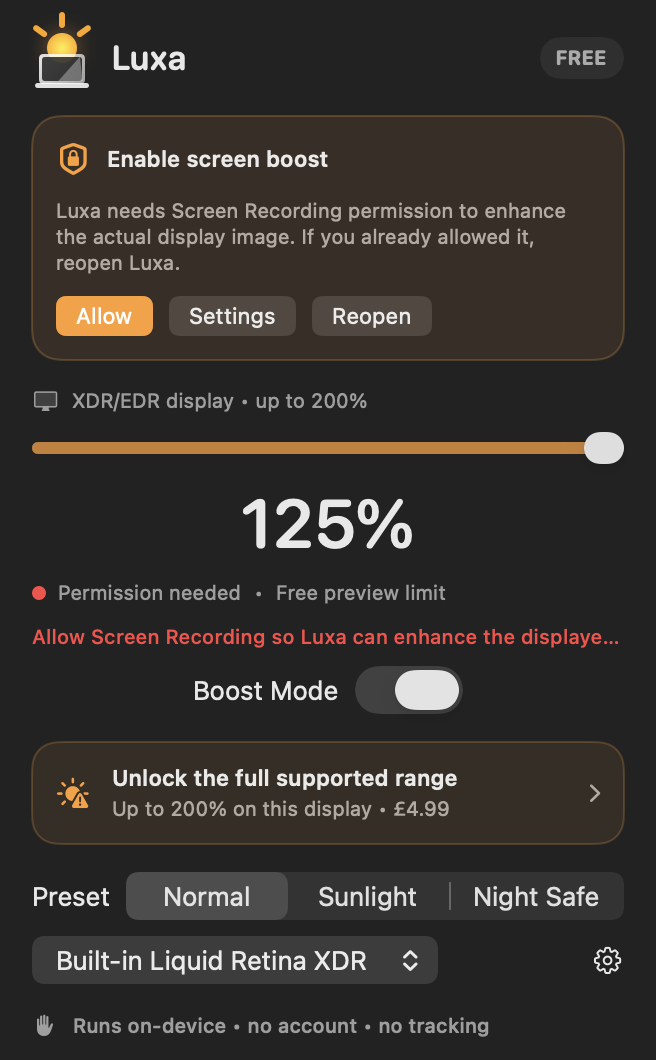
Not sure where to start? Use the manual brightness helper.
Boost says “Permission needed”
Open System Settings → Privacy & Security → Screen & System Audio Recording. Enable Luxa, then choose Reopen inside the app. If Luxa is already enabled, turn it off and on once, reopen the app, and try again.
Luxa reports capture failures in the menu instead of silently leaving the slider at a level that was not applied.
The maximum is lower than expected
Open Luxa Settings and read the current display label. A standard display intentionally has a smaller range. On an XDR/EDR display, check your maximum safety cap, battery state, Mac temperature, HDR setting, and reference mode.
macOS may temporarily limit brightness to protect the display. Let the Mac cool, disconnect unneeded power-hungry accessories, and test again.
A display was disconnected or the boost looks stale
Luxa refreshes connected displays automatically. If the menu still names an old display, quit and reopen Luxa. Sleep and wake reset the overlay before it is reapplied, which prevents a stale captured image from remaining visible.
Purchase or launch-at-login problem
Choose Restore Purchase in Luxa Settings while signed into the same Apple Account used for the purchase. Existing paid 1.0 and 1.1 customers should receive Pro automatically. For launch at login, turn the option off and on; any macOS registration error appears in Settings.
If the issue remains, email billypmas@icloud.com with your Mac model, macOS version, Luxa version, display model, and the exact status message. Do not include passwords or private screenshots.
Frequently asked questions
Where is Luxa after launch?
Luxa is a menu-bar utility. Look for the sun icon near the clock rather than in the Dock.
How do I reset everything?
Open Luxa Settings and choose Restore defaults. Quitting Luxa also removes its active overlay and restores standard display output.
How do I contact support?
Email billypmas@icloud.com with device and display details plus the in-app status message.