
Why the permission is technically necessary
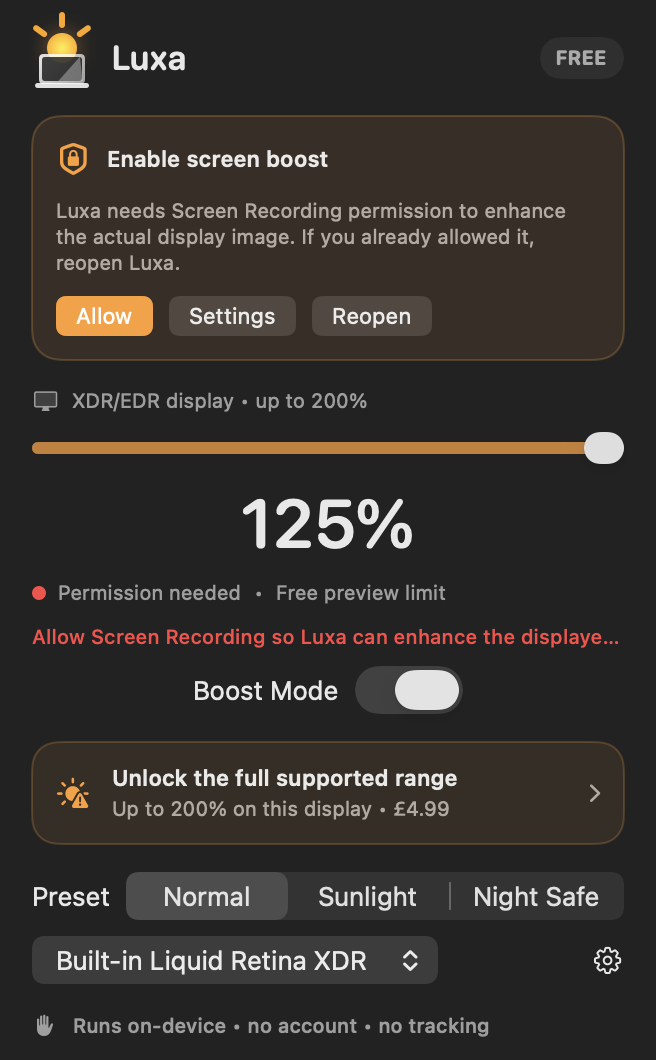
Luxa’s XDR method captures frames from the selected display with Apple’s ScreenCaptureKit, excludes Luxa’s own overlay, enhances the pixels, and presents the result in an extended-range Metal layer. macOS classifies any app that can read visible screen pixels under Screen Recording privacy controls.
Luxa is not creating a video file. Frames exist only long enough to render the next on-screen frame. The app has no account system, analytics SDK, advertising SDK, cloud sync, or network client entitlement.
How to allow access
Choose Allow in Luxa, or open System Settings → Privacy & Security → Screen & System Audio Recording. Enable Luxa, then reopen the app so macOS applies the updated permission. Luxa verifies access and shows a red status if capture still cannot start.
If you decline, standard-display gamma adjustment can still work, but the stronger XDR/EDR path cannot redraw the desktop.
How to remove access
Return to the same Privacy & Security panel and turn Luxa off. Quit and reopen the app. You can also uninstall Luxa at any time; its preferences are local and contain only settings such as your selected display, default level, and safety options.
Frequently asked questions
Does Luxa record my screen?
No. It processes live frames in memory to render the brighter display and does not create or upload recordings.
Can Luxa see passwords or private windows?
The macOS permission allows access to visible screen pixels. Luxa’s code uses them only for immediate rendering and does not analyse, store, or transmit them.
Why must I reopen Luxa?
macOS often applies a changed Screen Recording permission only after the app launches again.